
How to Submit a Sitemap on Google Search Console (Step-by-Step)

Quick Overview: To submit a sitemap, open Google Search Console > select your verified property > click Sitemaps under Indexing > enter the sitemap path (usually sitemap.xml) > click Submit. Google fetches the file within minutes, and crawling the URLs inside the sitemap takes anywhere from a few hours to a few weeks.
A sitemap lists the pages, videos, and other files on your site that you hand to Google so it can find important pages and crawl your site more efficiently. Submitting it through Google Search Console (GSC) tells Google where to look and shows you what it could read, what it couldn't, and where the file is broken. Here's the full process for submitting a sitemap on GSC.
Before You Submit: What You Need Ready
A verified property in Search Console. You can't submit a sitemap for a site you haven't verified ownership of. If the property isn't verified yet, that's step zero.
A valid sitemap file. This is usually an XML file (sitemap.xml), though Search Console also accepts RSS/Atom feeds and plain text files listing URLs. A few technical requirements to check first:
Must be UTF-8 encoded
URLs inside it must be fully qualified and absolute (https://yoursite.com/page, not /page)
Limited to 50,000 URLs or 50MB uncompressed per file. Larger sites need multiple sitemaps tied together with a sitemap index file.
List only canonical, indexable URLs that return a 200. Redirects, noindex pages, and 404s pass every validator and still throw errors in GSC.
Root placement. It should sit at the site root (yoursite.com/sitemap.xml); that's where most tools and platforms put it by default, though it can technically live elsewhere depending on your CMS or hosting setup.
Steps to Submit a Sitemap on Google Search Console
Step 1: Confirm the Sitemap Is Actually Accessible
Before submitting anything, load the sitemap URL directly in a browser and confirm it returns the file cleanly — not a 404, a redirect, or a login wall. If you built it manually, run it through an XML sitemap validator to catch syntax errors.

Step 2: Open the Sitemaps Report
Log in to Google Search Console.

Select the correct property from the dropdown in the top-left (make sure you're in the right one if you manage multiple sites or clients).
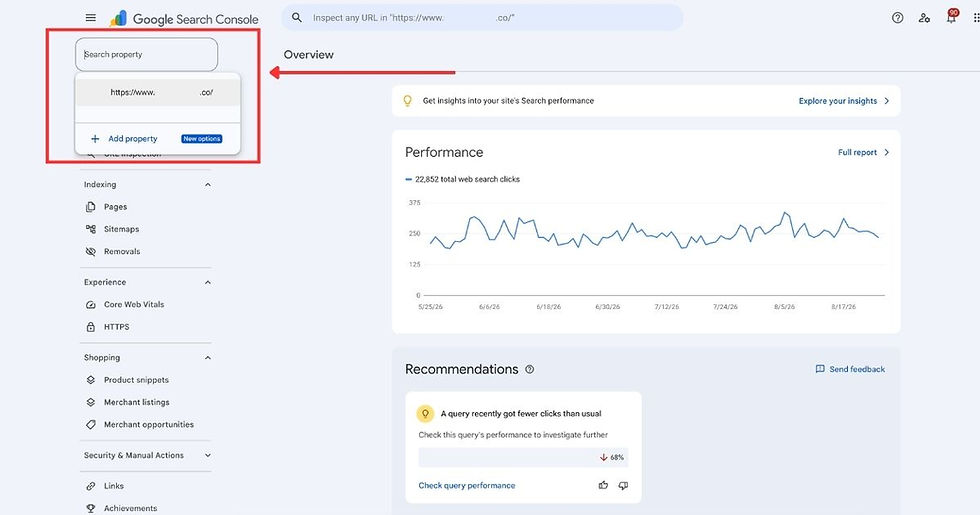
In the left-hand sidebar, click Sitemaps under the "Indexing" section.

Step 3: Add the Sitemap
In the "Add a new sitemap" field, enter the sitemap path. On a URL-prefix property, the domain is already fixed. For example, if your full sitemap URL is https://yoursite.com/sitemap.xml, you only need to type sitemap.xml.
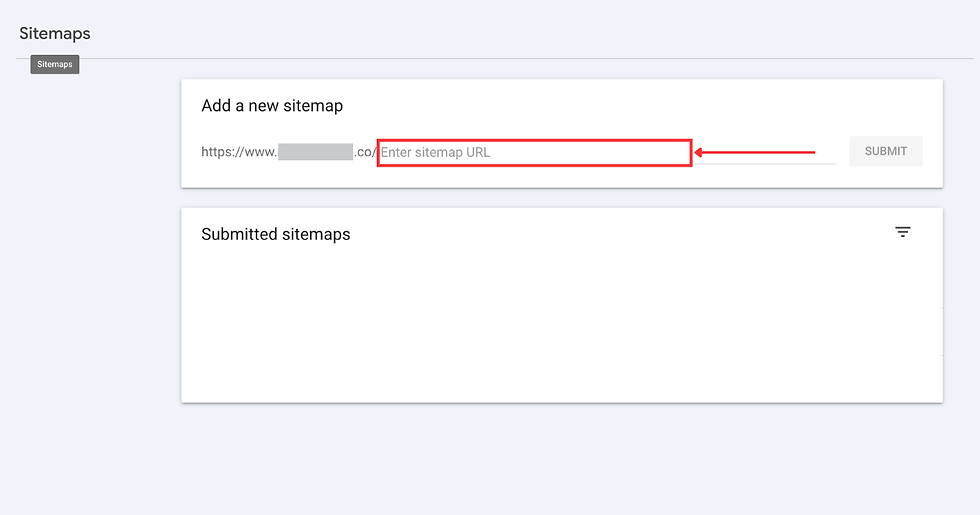
Click Submit.

Note: Google fetches the sitemap almost immediately to confirm it can read it. Actually crawling and indexing the URLs listed inside it happens separately and can take anywhere from a few hours to a few weeks, depending on the site's crawl budget and history with Google.
Step 4: Check the Status
Refresh the report, then check the status column next to your submitted sitemap.

You'll see one of three outcomes:
Success — the sitemap was fetched and read with no errors.
Couldn't fetch — Google wasn't able to retrieve the file at all. Often this just means it hasn't fetched yet, so wait a day and recheck before assuming a permissions, robots.txt, or server issue.
Has errors / Sitemap had X errors — the file was read, but some entries had issues (broken URLs, formatting problems, redirects, etc.).
Click the specific sitemap row to see details, including the number of discovered URLs, the submission date, and any errors, broken down with actionable explanations.
Step 5: Fix Errors and Resubmit If Needed
If Search Console flags errors, fix the underlying issue in the sitemap file itself (not in GSC — the report only reflects what's in the file). Once corrected, you don't need to delete the old submission; just resubmitting the same URL prompts Google to refetch it.
When an error keeps reappearing after you've fixed the file, the problem is usually in the site's crawl setup. For this, perform a technical SEO audit of your website.
A Few Things Worth Knowing
Submitting doesn't force indexing. It only tells Google the URLs exist and speeds up discovery. Whether a page actually gets indexed still depends on content quality, crawl budget, and whether Google decides it's worth indexing.
<lastmod> is the tag that matters. Search engines recommend using it as a best practice for building a sitemap. It tells search engines whether a page has changed since their last visit and needs to be recrawled, but only when the dates are verifiably accurate.
You can submit multiple sitemaps. Large or segmented sites often submit separate sitemaps for products, blog posts, categories, etc., or a single sitemap index that points to all of them.
Note: Submitting individual sitemaps is more useful because Search Console then shows you results for each one separately. If your blog pages aren't getting picked up but your product pages are, you'll see it straight away.
Check the Pages report too. Once a sitemap is submitted, review the Pages report (also under Indexing) to check whether Google has indexed your page in GSC.
Removing a sitemap doesn't deindex pages. If you delete a sitemap submission from GSC, it just stops Google from using it as a discovery source. It won't remove already-indexed pages.
Quick Recap
Confirm the sitemap is valid, accessible, and correctly formatted.
Go to Sitemaps under Indexing in Search Console.
Enter the sitemap path and hit Submit.
Monitor the status and fix any errors that come up.
That's the whole process. It's a five-minute task that's easy to skip but worth doing every time a new site goes live or a sitemap structure changes significantly. If the rest of your technical setup hasn't had the same attention, a one-time SEO cleanup is a reasonable next step.
FAQ
How do I create a sitemap for Google?
Check yoursite.com/sitemap.xml first — most platforms make one for you. WordPress uses Yoast or RankMath; Shopify, Webflow, Wix, and Squarespace generate one automatically. Only build manually if none exists.
Why can't Google Search Console read my sitemap?
Usually, because Google hasn't fetched it yet. Wait a few days. And if it persists, check that robots.txt isn't blocking the file, that the URL returns a 200 status code, and that your property's domain format matches your site exactly.
Is a sitemap necessary for SEO?
Not always. Small sites with good internal linking get found without one. It matters most for large sites, unlinked pages, and new sites with no backlinks.
Do I need to resubmit my sitemap every time I publish?
No. Google refetches it on its own schedule, and most CMS platforms update the file automatically.
Does submitting a sitemap improve rankings?
No. It helps Google find your pages, not rank them. What happens after discovery depends on content quality.


Comments